Highlight mode: color in what you have checked
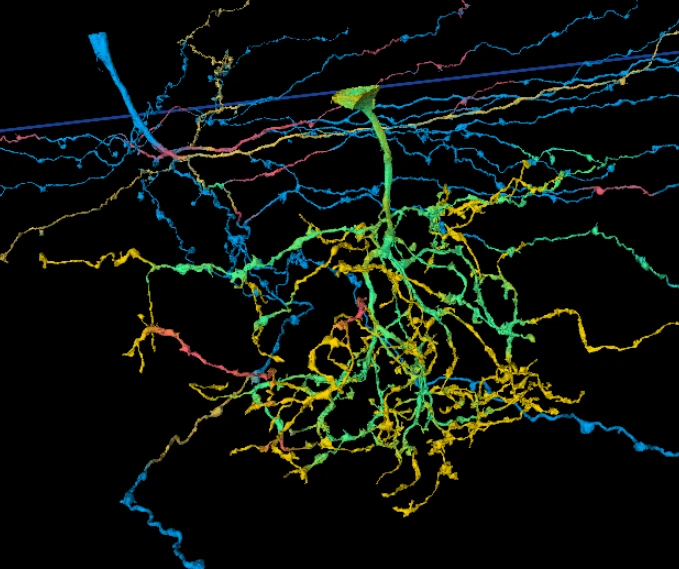
Proofreading a big cell means checking a lot of branches, and it is easy to lose track of which ones you have already been down. Until now the usual trick was to drop a point at the end of each branch. That marks a place. It does not show you the stretch of cell you checked.
Highlight mode does. You pick two points on a cell, and the stretch between them takes a color. The cell fills in as you work, and whatever is still plain is what is left to do.
How to use it#
- Click the spray can in the toolbar to open Highlight.
- Hold Ctrl and click the cell where your checked stretch starts. On a Mac, hold Cmd. Holding H and clicking works too.
- Turn and move the view as much as you like.
- Hold Ctrl and click where the stretch ends.
The game finds the path along the cell between your two clicks and colors the surface of the cell along it.
Pick your colors#
Highlight starts with three colors: Checked, Needs a look and Problem. Click a color's swatch to change it. Use + Add to make your own, with any name you like, up to eight colors in all.
Your colors are saved to your account, so they are there on any computer you sign in on.
Color reach#
The Color reach slider sets how far out from the middle of the branch the color spreads, from 0.5 to 8 µm.
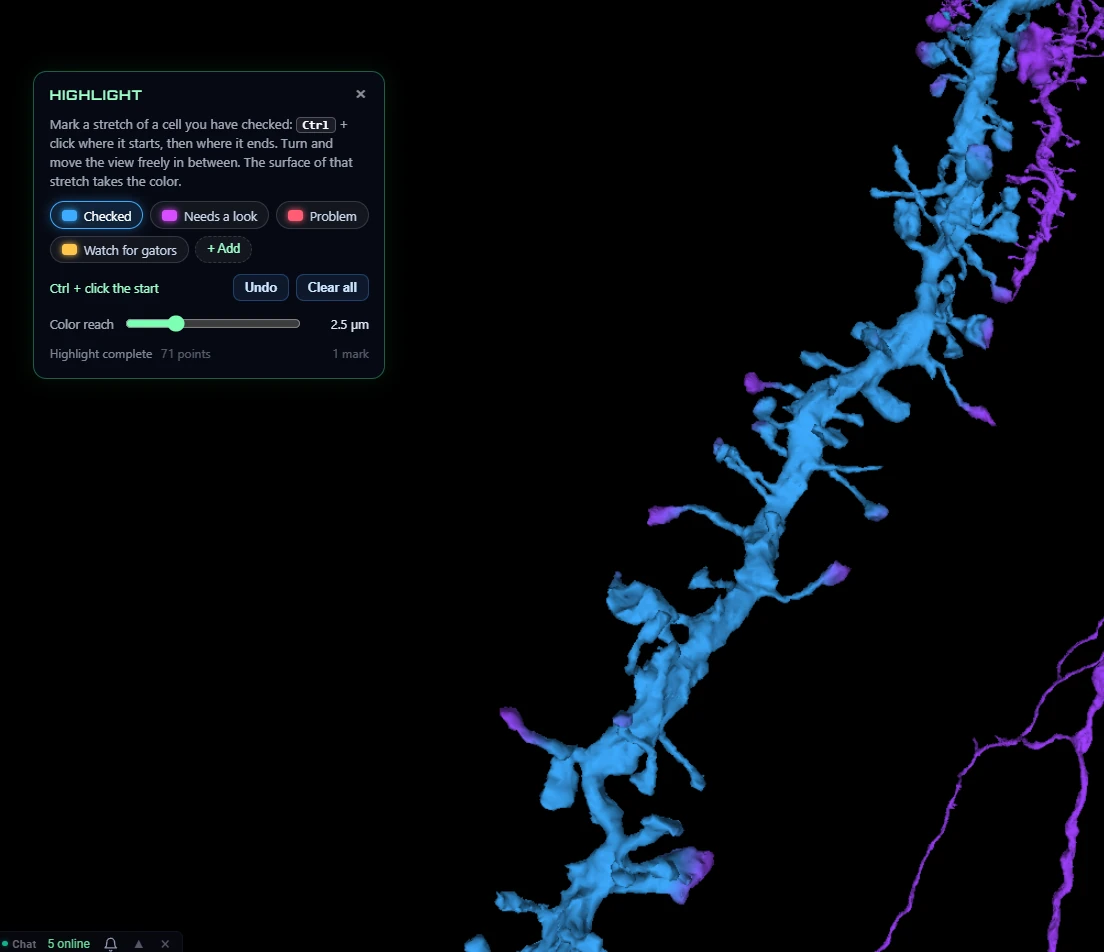
Here is the same stretch of dendrite at two settings. At 2.5 µm the color covers the shaft, but the tips of the longer spines stay the cell's own purple.
At 4 µm the color reaches all the way to the spine tips.
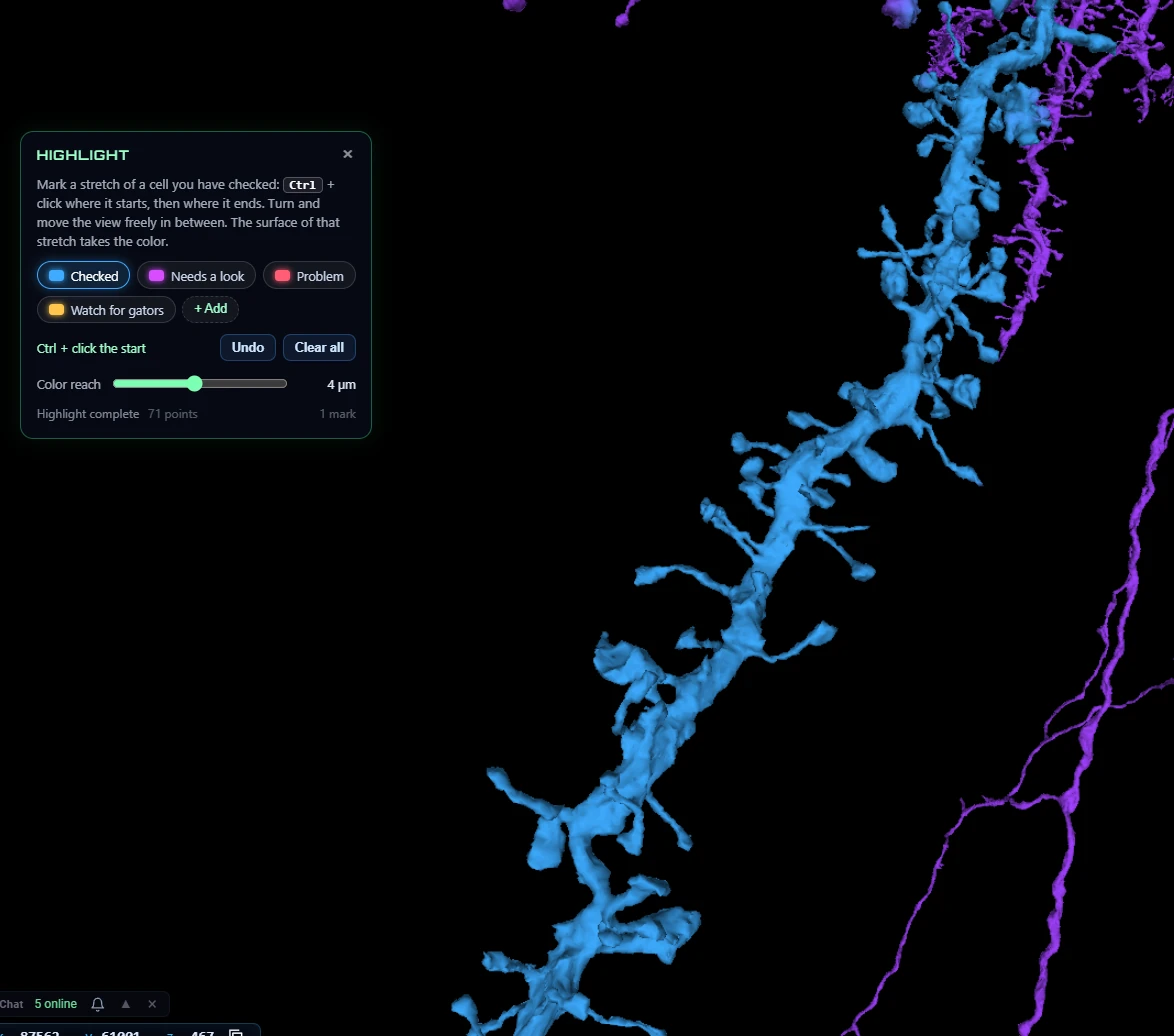
A wider reach covers thick branches and their spines. A narrower reach keeps the color off neighboring branches that run close by. You can move the slider after you have made your marks, and they all update.
Good to know#
- Undo removes your last mark. Clear all removes every mark.
- Your marks are saved with your view. They come back with the autosave, with Save view on a claim, and in a link you share.
- Marks stay put when you merge or split. They are attached to the place, so editing the cell does not lose them.
- Long paths can take a while. If the game cannot find the path within a minute it stops, and nothing is marked. There is also a Stop tracing button.
- You can drag the Highlight box anywhere on the screen, and it stays where you put it.
- Highlight is not on every dataset yet. Where it is off, the spray can is greyed out.
Tell us how it goes#
Highlight is new, and it will change as you use it. If something does not color the way you expect, send it with the feedback button in the game, or tell us on the forum.