How to make Pyr run faster

Pyr feeling slow? A setting or two usually fixes it.
Every cell you proofread helps map the brain, one neuron at a time. The images behind each dataset are far too large for any computer to hold at once, so Pyr streams in just the pieces you are looking at, while the lab's servers keep track of every edit every player makes. That makes Pyr a challenge not only to play but also to deliver, and we are always working to make it faster.
Pyr draws a lot at once: sharp 2D images, detailed 3D cells, chat, and a few festive extras. A fast computer handles that easily, but an older laptop or a slow connection can start to drag. Below are the settings that help most, biggest wins first. After them comes a quick look at how Pyr loads a cell, which helps you tell what is slow, and a rundown of what we've already done to speed things up.
To open Settings, press Shift+S. You can type any setting's name into the search box at the top to jump straight to it.
1. Lower the 2D image detail#
If the 2D images take a long time to sharpen, start here.
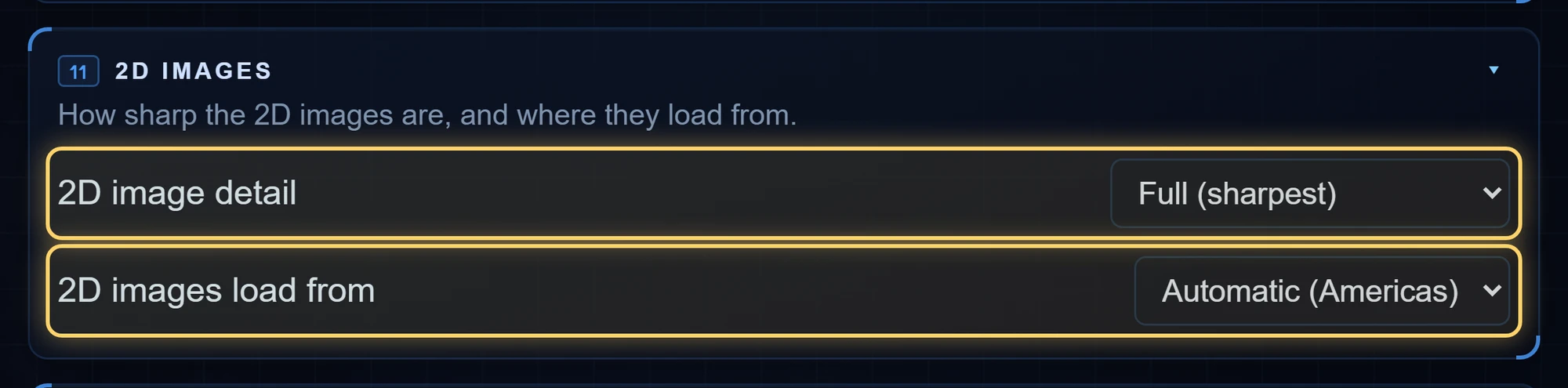
Go to Settings > 2D images > 2D image detail and pick:
- Half (faster loading): loads about a quarter of the data. For most tracing, this is still plenty sharp.
- Quarter (fastest, blurry): loads about a sixteenth of the data. Good for a very slow connection.
The images stay at that detail until you choose Full again, so switch back whenever you need a close look at a tricky spot.
A different detail for each dataset#
Some datasets are heavier than others, so Pyr can remember a detail for each one. Right below 2D image detail there is a line named after the dataset you are on, such as On MEC. Leave it at Same as above, or pick Full, Half or Quarter just for that dataset.
Pyr saves the choice to your account and switches the 2D detail by itself when you change datasets. For example, you might use Half on MEC for heavy proofreading and keep Full on Cilia.
2. Load 2D images from the closer server#
Retina, MEC and the Sandbox have a second copy of their 2D images hosted in Asia. Other datasets always load from the Americas.
In Settings > 2D images > 2D images load from, Automatic times both copies once and uses the faster one for you. The menu shows which one it picked. If you know the other copy is closer to you, choose Asia or Americas yourself.
3. Keep fewer cells in the 3D view#
Every cell shown in 3D uses graphics memory, and a view full of finished cells is one of the most common reasons Pyr slows down.
- Take cells out of the view once you are done with them.
- Ctrl+Shift+X clears every cell from the view at once. Your cells and your edits stay exactly as they are; they are just no longer drawn.
4. Quiet the screen#
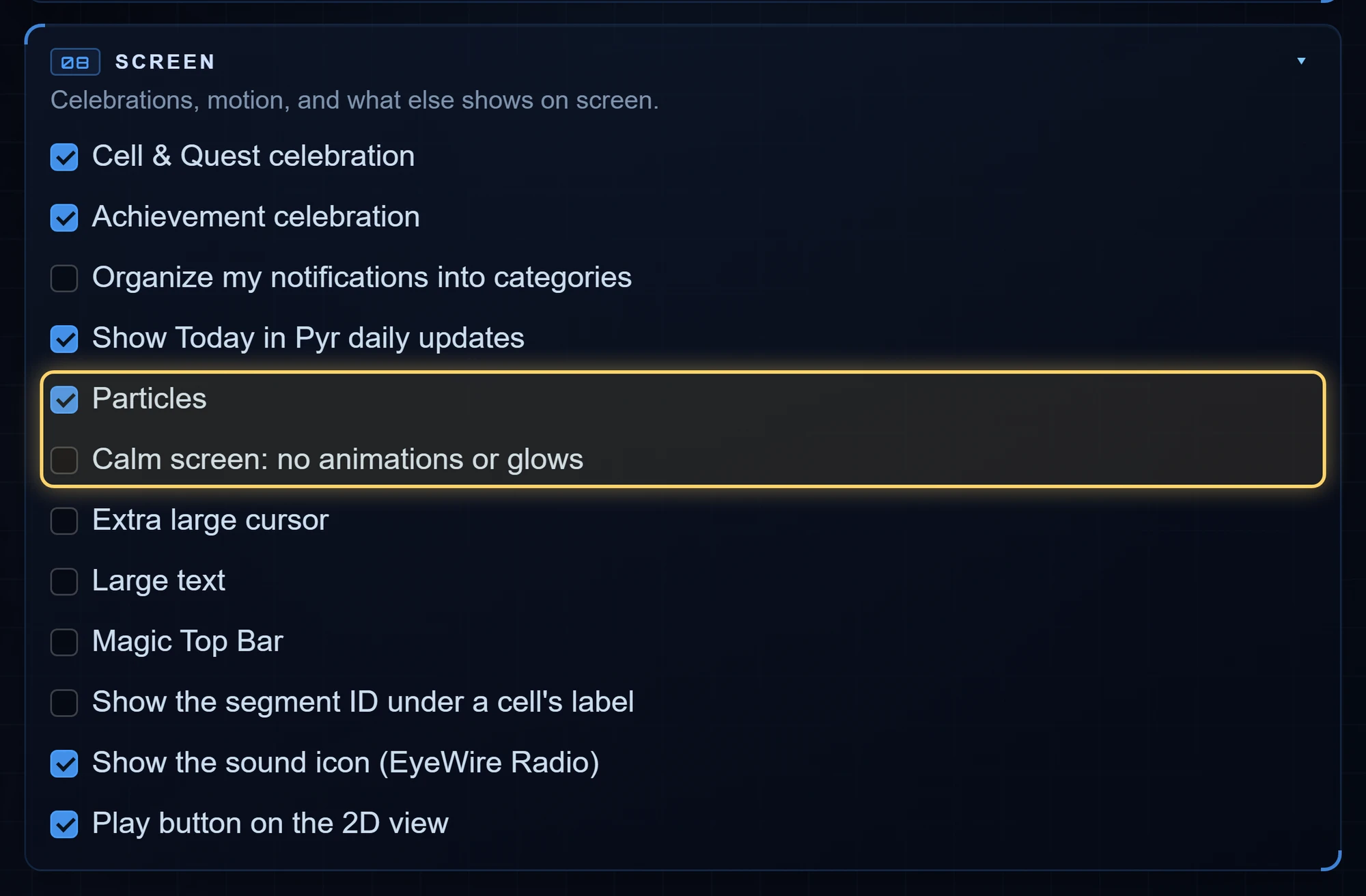
A few settings in Settings > Screen cut down on extra drawing:
- Calm screen: no animations or glows stops the animations and glows around text, buttons and panels. The cells and the 3D view stay as they are. A few small animations follow after a reload.
- Particles off: your points go down without the little burst of sparkles.
- During Thanksgiving week, Show the Thanksgiving turkey turns off the turkey that wanders along the bottom of the screen. The turkey button by the chat box does the same, and Calm screen keeps him away too.
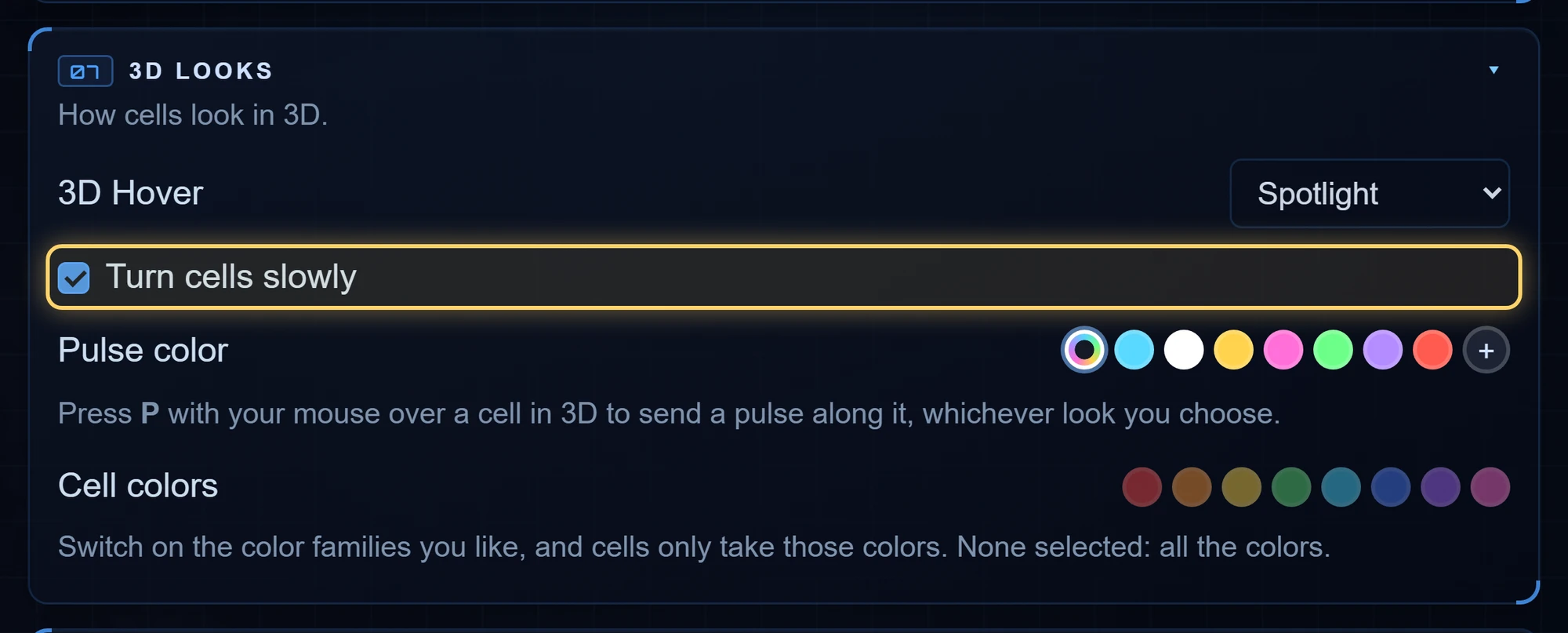
In Settings > 3D looks, turning off Turn cells slowly stops the 3D view from slowly spinning by itself.
5. Tune the Viewer Settings#
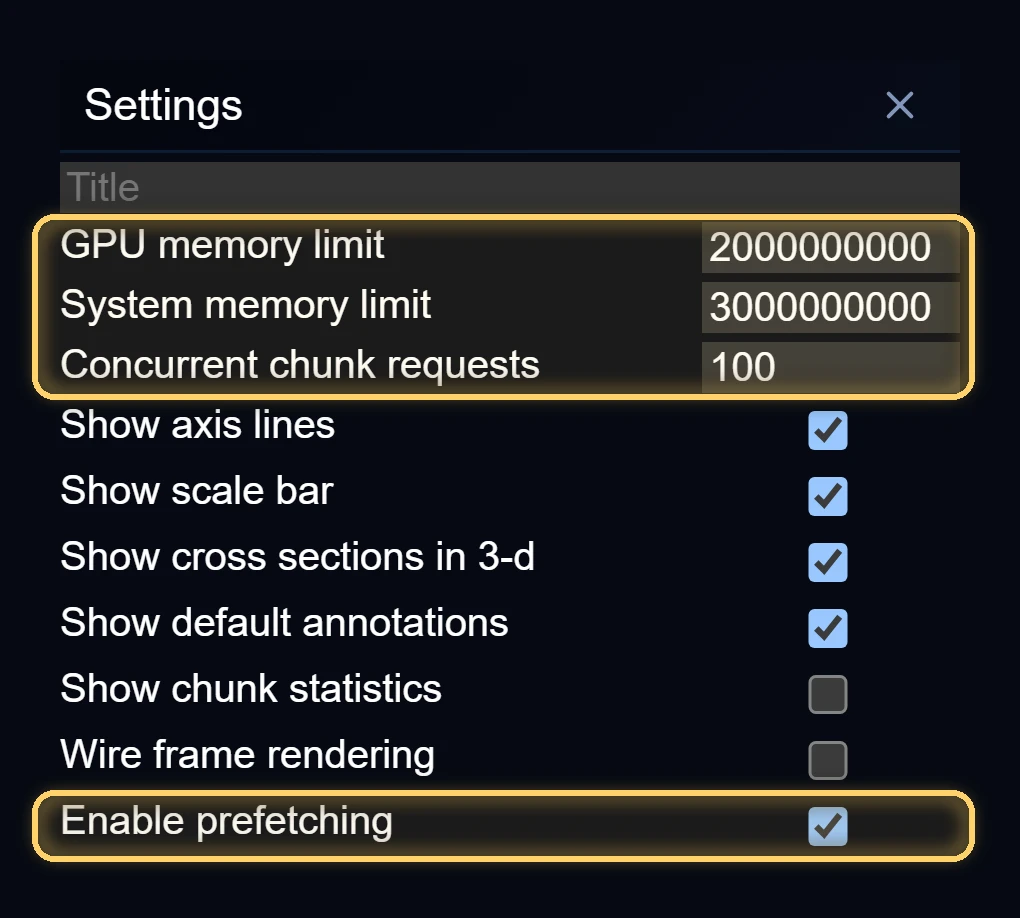
For finer control, go to Settings > Neuroglancer and click Viewer Settings. Pyr remembers what you set here on your account, so it stays the same on every new cell.
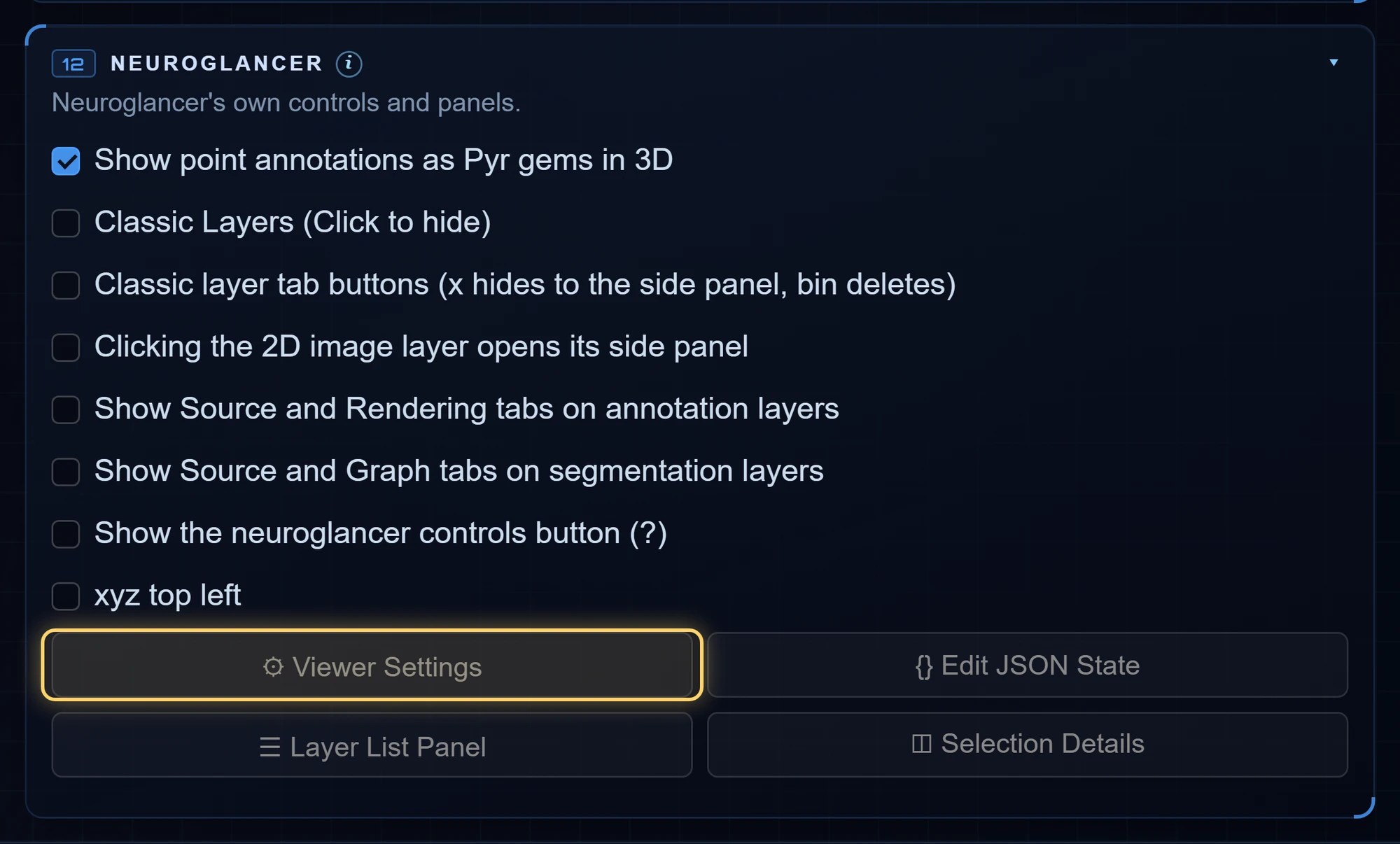
- Enable prefetching: loads nearby images before you reach them. Turning it off saves data on a slow connection, though scrolling to a new spot may take a moment longer.
- Concurrent chunk requests: how many pieces of data load at the same time. A lower number can help on a weak connection.
- GPU memory limit and System memory limit: how much memory the viewer may use. If Pyr stutters or the browser tab crashes, try a lower number. If you have a strong computer and cells keep fading in and out as you move, a higher number can help.
6. Check whether it's you or the servers#
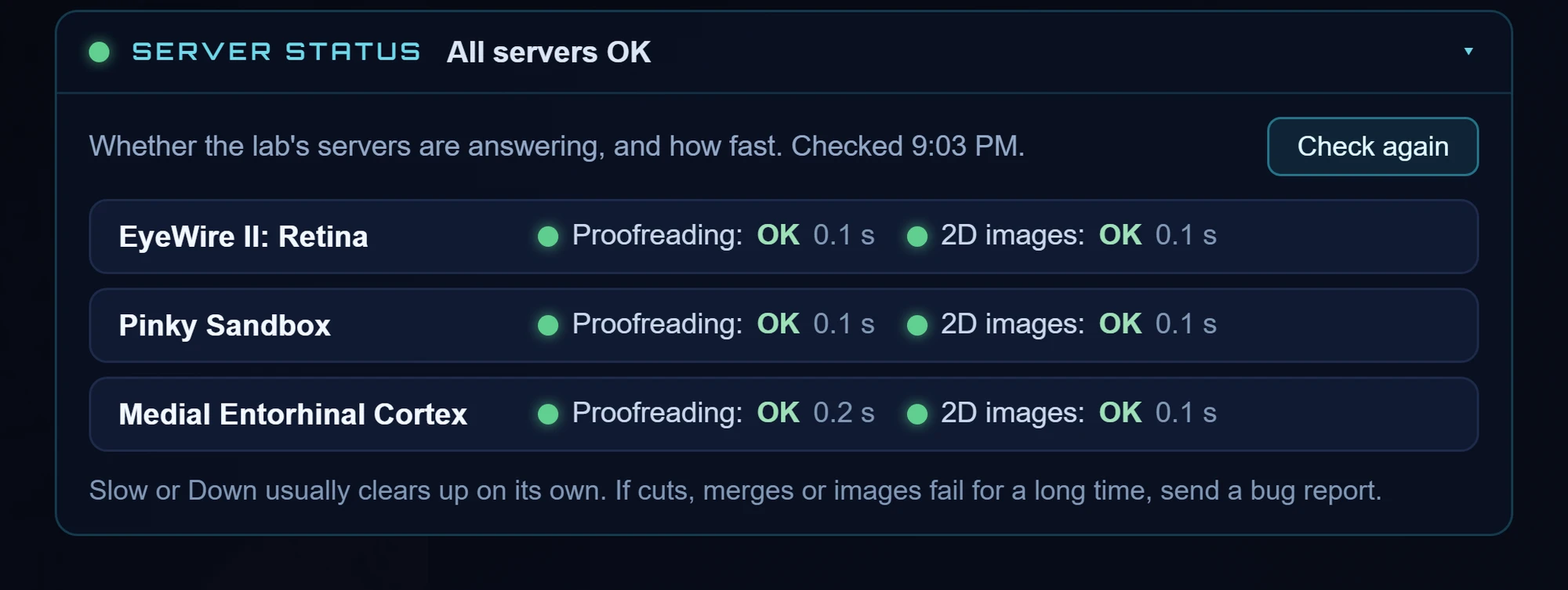
Sometimes the slowdown isn't your computer at all. Open your Profile and go to Datasets. The Server status line at the top says whether the lab servers for Retina, the Sandbox and MEC are OK, Slow or Down, and it opens by itself when one is having trouble. If a server is slow, it's not your setup, and things usually pick up again soon.
How Pyr works behind the scenes#
When you open a cell, Pyr is talking to several servers at once. Knowing who does what makes it easier to tell what is slow.
The 2D images. A dataset's microscope images are far too big to download whole, so they are stored as millions of small blocks called chunks, each a little cube of image. Every dataset is saved at several levels of detail, from sharp to very blurry. Pyr works out which chunks cover what's on your screen, shows a blurry version first so you see something right away, then fills in the sharp chunks. As you scroll through slices, it also fetches the images just ahead of you. This is the part that depends most on your internet connection, and it's what the 2D image detail and image source settings change.
The 3D cells. Each cell is built from many small pieces. When you select a cell, Pyr first asks the lab's proofreading server which pieces belong to it, then downloads the 3D shape of each piece and draws them together. A big cell can be made of thousands of pieces, which is why it fills in bit by bit. Once they arrive, every shape stays in your graphics card's memory while it is in view, which is why clearing finished cells helps so much.
Your edits. A merge or a cut goes to the proofreading server, which updates the cell and builds its new 3D shape. That's the "Updating the 3D shape" you sometimes see after an edit.
Cell information. For the cells in view, Pyr also asks the lab's servers whether each one has been proofread and what type of cell it is.
The game itself. Chat, claims, the Cell Library, leaderboards, Achievements and notifications live on Pyr's own game server, separate from the science data.
So different kinds of slow have different causes:
- 2D images stay blurry: usually your connection, or the image server. Try a lower image detail or the closer server.
- 3D cells take a long time to appear, or an edit takes a while: usually the proofreading server. Check Server status.
- Panning and turning feel choppy: usually too much for the graphics to draw at once. Clear finished cells, turn on Calm screen, or lower the memory limits.
What we've already sped up#
A lot of the work on Pyr this fall has gone into making it lighter. Some highlights:
- Faster 2D images. Pyr now asks for fewer image chunks, in a better order: fewer blurry backup levels, only a short way fetched ahead instead of dozens of blocks, and a piece that fails to arrive is tried again. In our tests, Sandbox images that took about 8 seconds to fill in now take about 5.
- Copies of the images in Asia for Retina, MEC and the Sandbox, with Automatic picking the faster one for you.
- Fewer questions to the lab's servers. Cell status is now asked for many cells in one request instead of one at a time, and remembered for a short while. After an edit, Pyr only looks up the claims on your screen.
- Smoother big views. Views with hundreds of cells or thousands of annotation points draw and respond faster, and cut points appear the moment you place them, even on very big cells.
- A faster Cell Library. It loads cells in pages instead of all at once and does much less work when it updates. The Mine list no longer freezes when you have finished many cells, and the Cilia Quest list loads much faster.
- Lighter chat and leaderboards. When many people play at once, joining and leaving now reach chat as one small message each. The leaderboard refreshes less often and asks for far less, and the bell asks only for what is new.
- Your Viewer Settings stick. Memory and loading choices are saved on your account and kept for every new cell.
- Server status in your Profile, so you can see when the slowness is on our side.
Still slow?#
Tell us in chat or send us a bug report, and mention which dataset you were on and what felt slow. Every report helps us make Pyr lighter for everyone.
Happy proofreading!