How to unlock Edit access in Pyr
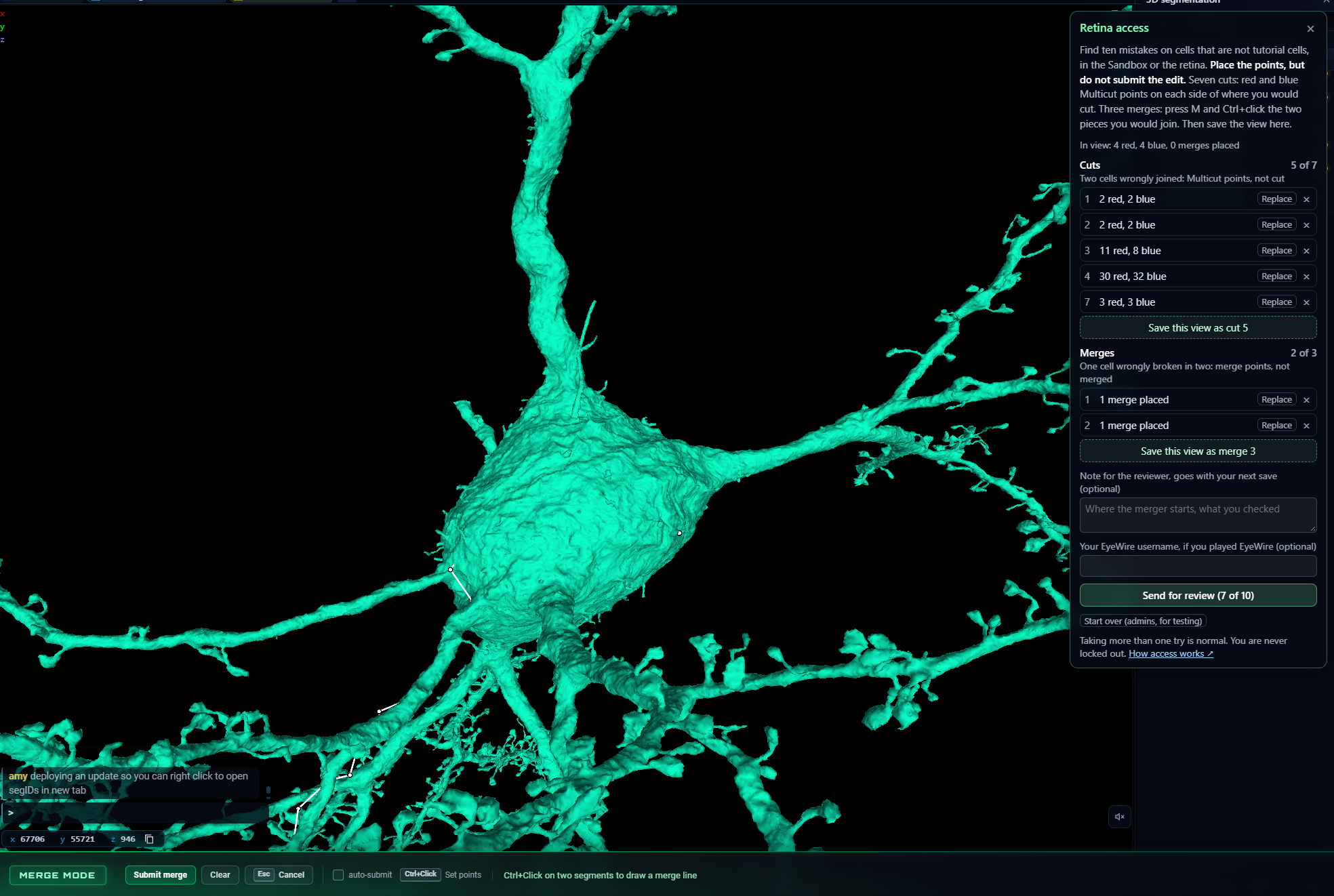
The Sandbox is where everyone starts in Pyr. Every signed in player can cut and merge there, and nothing you do in it touches real science. Once those tools feel natural, you can ask for edit access so that you can edit real neurons and help map the brain.
Getting started#
Everything you need to learn lives in the menu at the top right of Pyr (the burger icon).
- Site Tour. A quick walk around the screen: the top bar, the views and where everything is.
- Tutorials. Take them in order. Get Started shows you how to move around a cell in 3D and step through the electron microscope images. Advanced Interface covers layers, coordinates, annotations and settings. Merge and Cut teach the two edits on practice cells, so a slip costs nothing.
- Merger Sandbox. Practice cells, each with a merger to find and cut. The menu keeps count of how many you have done.
- Utilize Chat if you have questions, or ask for help in the Cell Library (neuron icon in the top bar).
What we ask for#
Before you can contribute to real science, you must demonstrate that you know your way around a neuron. For this, submit test edits on cells in the sandbox or on the Retina dataset where you found mergers or missed extensions. 10 demo edits are currently required:
- Seven cuts. Find places where two cells were wrongly joined. Place red and blue Multicut (cut) points on each side of where you would cut.
- Three merges. Find places where one cell was wrongly broken in two. Press M, then Ctrl+click the two pieces to place merge points.
Place the points, but do not submit the edit. Leave each mistake in place, so we can see it the way you found it.
How to request Edit access#
- Open the menu at the top right and choose Ask for retina access, at the very bottom.
- Place your cut or merge points, then press Save this view as cut 1 (or merge 1). Pyr keeps the view, every point you placed, and a note if you want to add one. The points are cleared afterwards, so the next one starts fresh.
- Click any saved example to fly back to it, or press Replace to swap in a better one.
- On a laptop, press Slim to make the box small while you work.
- When all ten are saved, press Send for review.
What happens next#
Someone from the team looks at every example and every point you placed and you will hear back in your notifications.
If your edits look right, your edit access is granted and the world of connectomics opens to you. If a few need another look, we mark them and tell you why. Redo those and send again.
Taking more than one try is normal. You are never locked out and there is no limit on tries. If you have practiced in the Sandbox for two weeks and still feel unsure, reach out to us. We are happy to help.
Help while you learn#
- The tutorials in Pyr. After Get Started, open the menu at the top right and take Merge, Cut and Advanced Interface.
- Chat and the Cell Library. Ask in chat, or ask for help on a cell from the Cell Library (the neuron icon in the top bar).
- Videos. How to merge, how to split, and Find Path, which helps you trace a merger back to where it starts. There is also a full playlist of advanced tutorials. We are working on tutorials using the new Pyr interface.
- The Proofreading Guide.
- Chat
Once you are in, you are part of the team building new maps of the brain. For science!